
Reading your reports
A tour of the seven report tabs — Overview, Funnel, Rentals, Customers, Staff, Cash flow and Long-term — and the filters that drive all of them.
Reports turns everything you’ve recorded into numbers you can act on. There are seven tabs — Overview, Funnel, Rentals, Customers, Staff, Cash flow and Long-term — and they all obey the same filters at the top of the page.
Filters first
Set the date range, and optionally a vehicle category and location, before reading anything. Category and location scope every tab; the date range scopes all of them except two, noted below, that are deliberately point-in-time.
Revenue is counted by pick-up date, and utilization is overlap-based. Most figures compare against the previous period of the same length, shown as a delta.
The tabs
Overview — your headline numbers: revenue, bookings, average daily rate (ADR), average rental length and utilization, plus bookings by status, a breakdown by category or fuel type, and per-vehicle performance. Start here.
Funnel — how bookings convert: reserved → confirmed → picked up → completed, with cancellation and no-show rates, plus a revenue split showing what came from the base rate, extras, protection, delivery, one-way fees, young-driver fees, discounts and tax.
Rentals — one row per booking with the full money breakdown: base, extras, protection, discounts, fees, tax, deposit, damage, refunds and the total, alongside check-out/check-in odometer, fuel and distance driven. Searchable, filterable by status, and exportable. This is the tab to open when you need to answer “what exactly did that rental earn?”
Customers — rentals, revenue and last-rental date per customer, with VIP and flagged markers. Useful for spotting repeat business worth looking after.
Staff — activity attributed to each team member: check-outs, check-ins and payments handled. Because every action records who performed it, this reflects real work rather than an estimate.
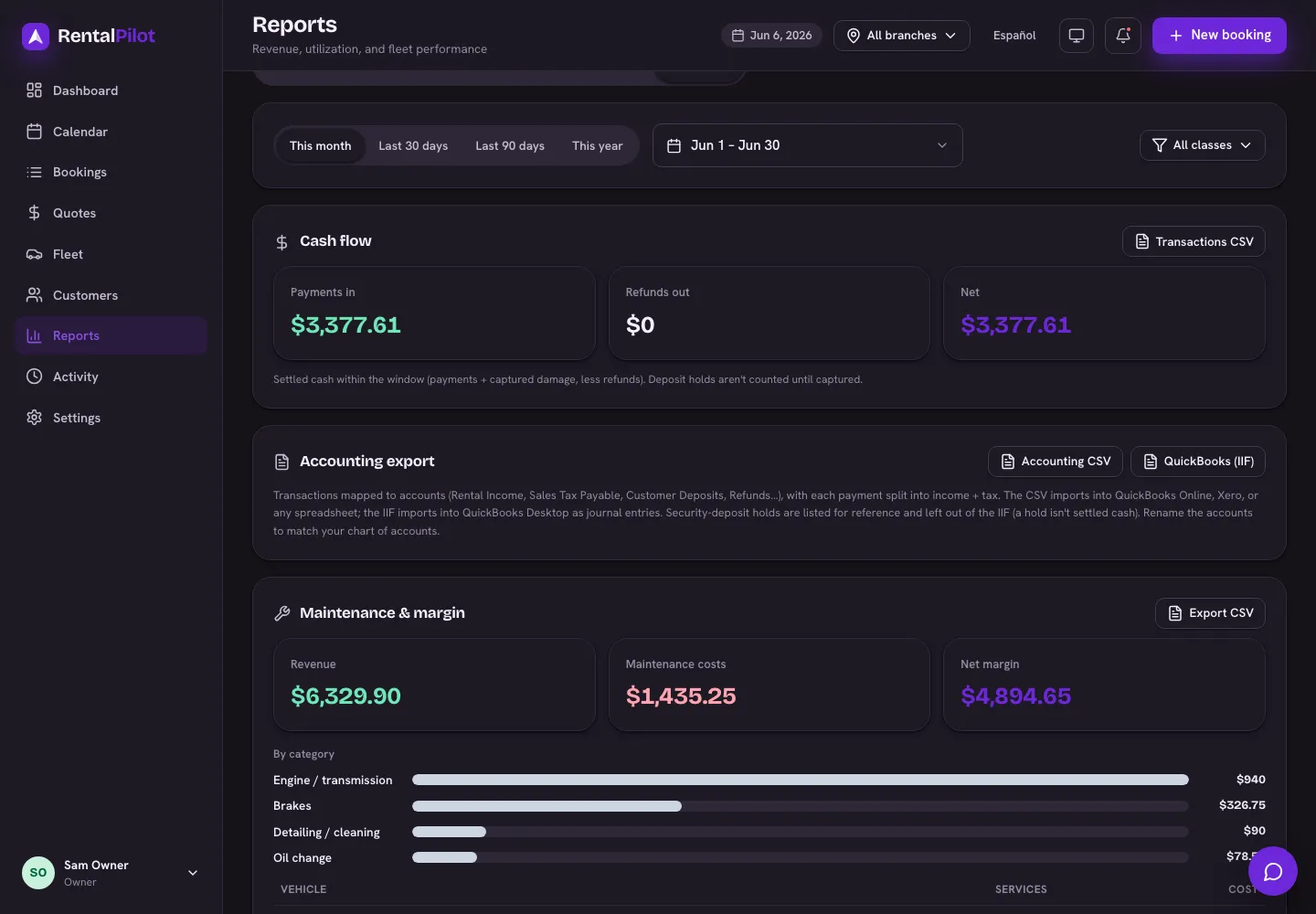
Cash flow — settled money in and out, an accounts-receivable aging table of unpaid rentals bucketed by how overdue they are, the Maintenance & margin card (see Maintenance, service costs & fleet alerts), and the accounting export (see Export your data for QuickBooks & Xero).
Long-term — only relevant if you run long-term rentals: monthly recurring revenue, active contracts, committed vs collected vs outstanding, and any contracts behind on payment.
Two views ignore the date range on purpose. The accounts-receivable aging table on Cash flow and the whole Long-term tab (including its CSV) show where you stand right now, not during a past window — an aged debt or an active contract doesn’t belong to a month. Category and location filters still apply.
Exporting
Most tabs have an Export CSV button that respects your current filters (with the two point-in-time exceptions above). For a bookkeeping-ready file mapped to accounting categories, use the accounting export on Cash flow instead of a raw tab export.
Want to see who changed what, rather than the numbers? See The activity log. Questions? Contact us.