
Export your data for QuickBooks & Xero
Download a categorized CSV or a QuickBooks Desktop IIF of your transactions — income, tax, refunds and deposits, ready for your accountant.
RentalPilot can hand your bookkeeper a clean, categorized record of every transaction. It’s an export — you download a file and import it into your accounting software — not a live two-way sync, so nothing connects to your books automatically and you stay in control of what gets imported.
You’ll find it in Reports → Cash flow → Accounting export.
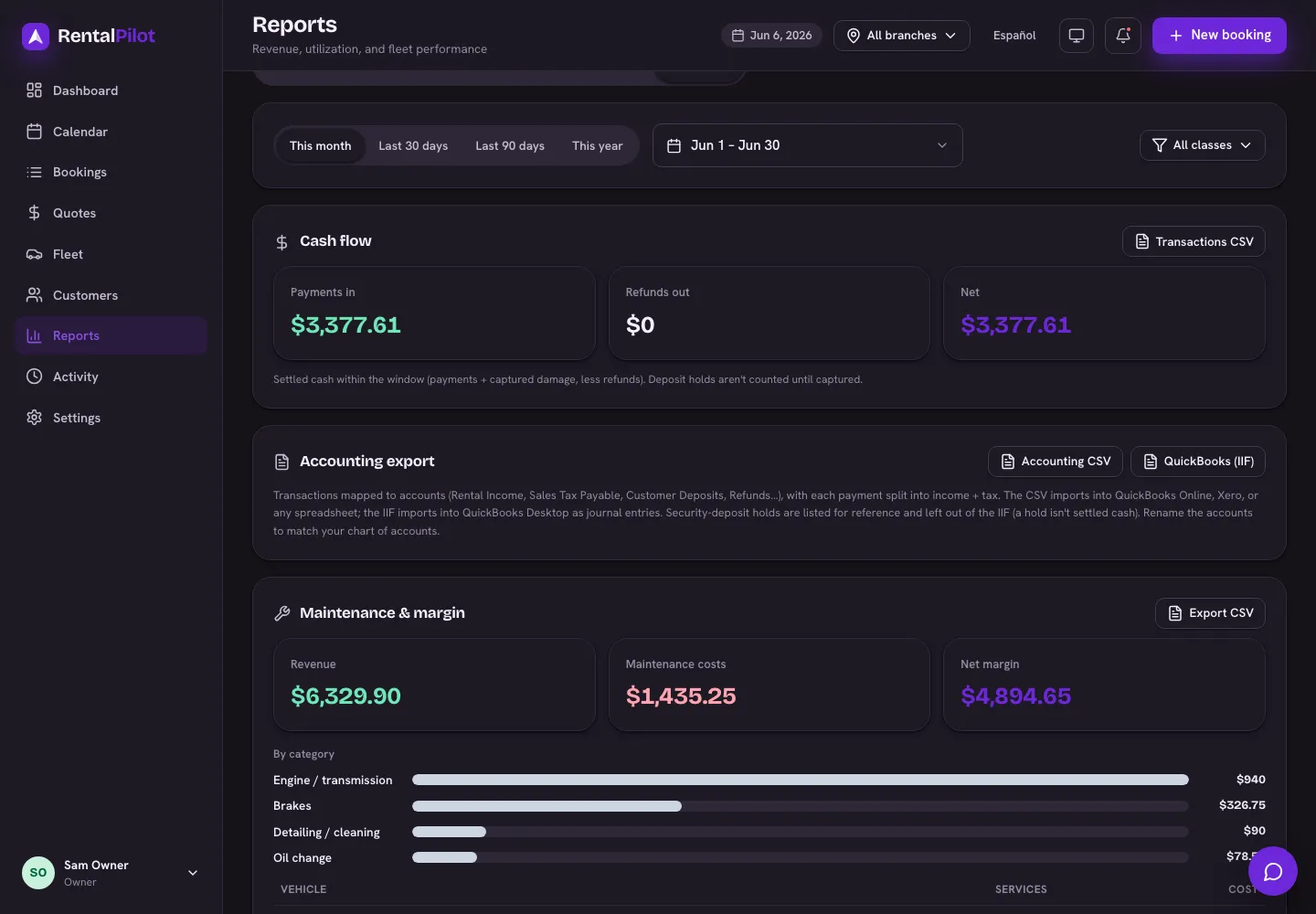
Two formats
- Accounting CSV — a spreadsheet with
Date, Account, Type, Customer, Booking, Memo, Amount. Import it into QuickBooks Online, Xero, or open it in any spreadsheet. Most accounting apps let you map the columns during import. - QuickBooks (IIF) — a file of balanced General Journal entries for QuickBooks Desktop. Each settled transaction becomes one journal entry that posts the cash against the right income/tax accounts, so debits and credits balance automatically.
Both cover the same transactions and respect the date range and filters you’ve set on the Reports page — so you can export one month, one location, or one vehicle class at a time.
What’s in the export
Every transaction is mapped to an accounting account:
- Rental Income and Sales Tax Payable — each payment is split into the rental income and the tax you collected.
- Customer Deposits — security-deposit holds and releases.
- Damage Income, Mileage Income, Other Income — damage charges, mileage overage, and extra charges (fines, tolls, etc.).
- Refunds and Adjustments.
Amounts are shown in your business’s currency (set in Settings → Pricing & catalog — see Set your rates, seasons and discounts).
Security deposits
A security-deposit hold is an authorization on the renter’s card, not money you’ve actually received. So holds appear in the CSV (listed for reference) but are left out of the IIF — a hold isn’t a settled accounting transaction. Once you capture a deposit (for damage), that capture is included as income.
Tips
- Rename the accounts to match your chart of accounts. The export uses sensible default names like “Rental Income” — during import, map them to your own equivalents (or rename them once and your software will remember).
- Pick your period first. Set the date range on Reports → Cash flow before exporting so the file contains exactly the transactions you want to book.
- Re-exporting is safe. The file is generated fresh each time from your live data; nothing is changed on RentalPilot’s side.
Which file do I use?
- Using QuickBooks Online or Xero → the Accounting CSV.
- Using QuickBooks Desktop → the QuickBooks (IIF) file.
- Working with a bookkeeper or your own spreadsheet → the Accounting CSV.