
Maintenance, service costs & fleet alerts
Send a vehicle to service and check it back in, log what maintenance costs, stay ahead of service intervals and document expiry, and see your fleet's running costs in reports.
RentalPilot keeps your fleet road-ready: it flags service that’s coming due and documents about to expire, lets you send a car to service and log what it cost when it’s back, and rolls those costs into your reports. It all lives in the Maintenance & service section on the vehicle’s page.
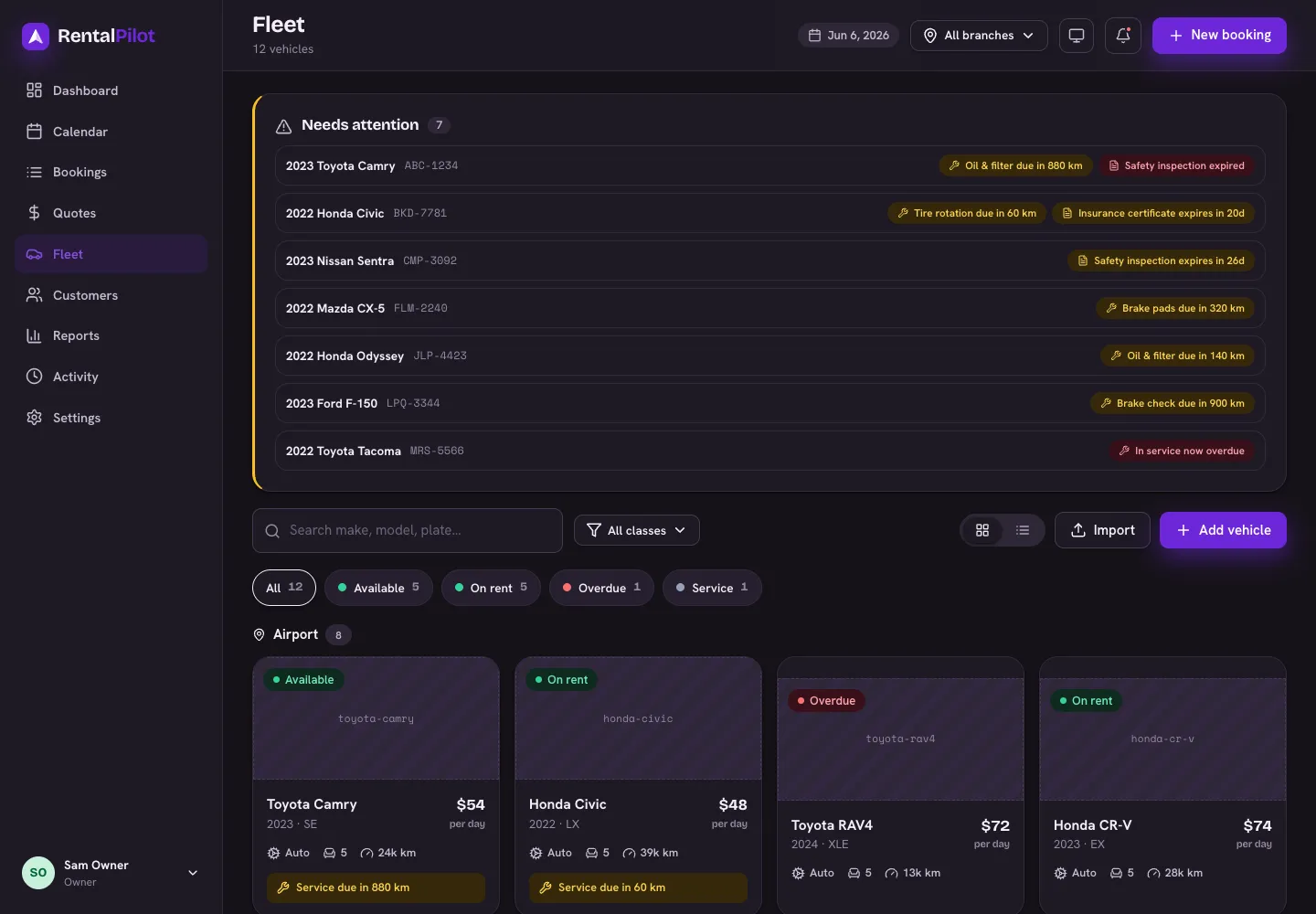
The “Needs attention” panel
At the top of the Fleet page, a Needs attention panel lists any vehicle that needs action:
- Service due — a service is coming up within 1,000 mi/km, or overdue (shown in red) once it’s past due.
- Documents — insurance, registration or similar expiring within 30 days, or already expired (shown in red).
Each row links straight to the vehicle so you can act on it. (Distances follow your mi/km setting in Settings → Pricing & catalog.)
Send a vehicle to service
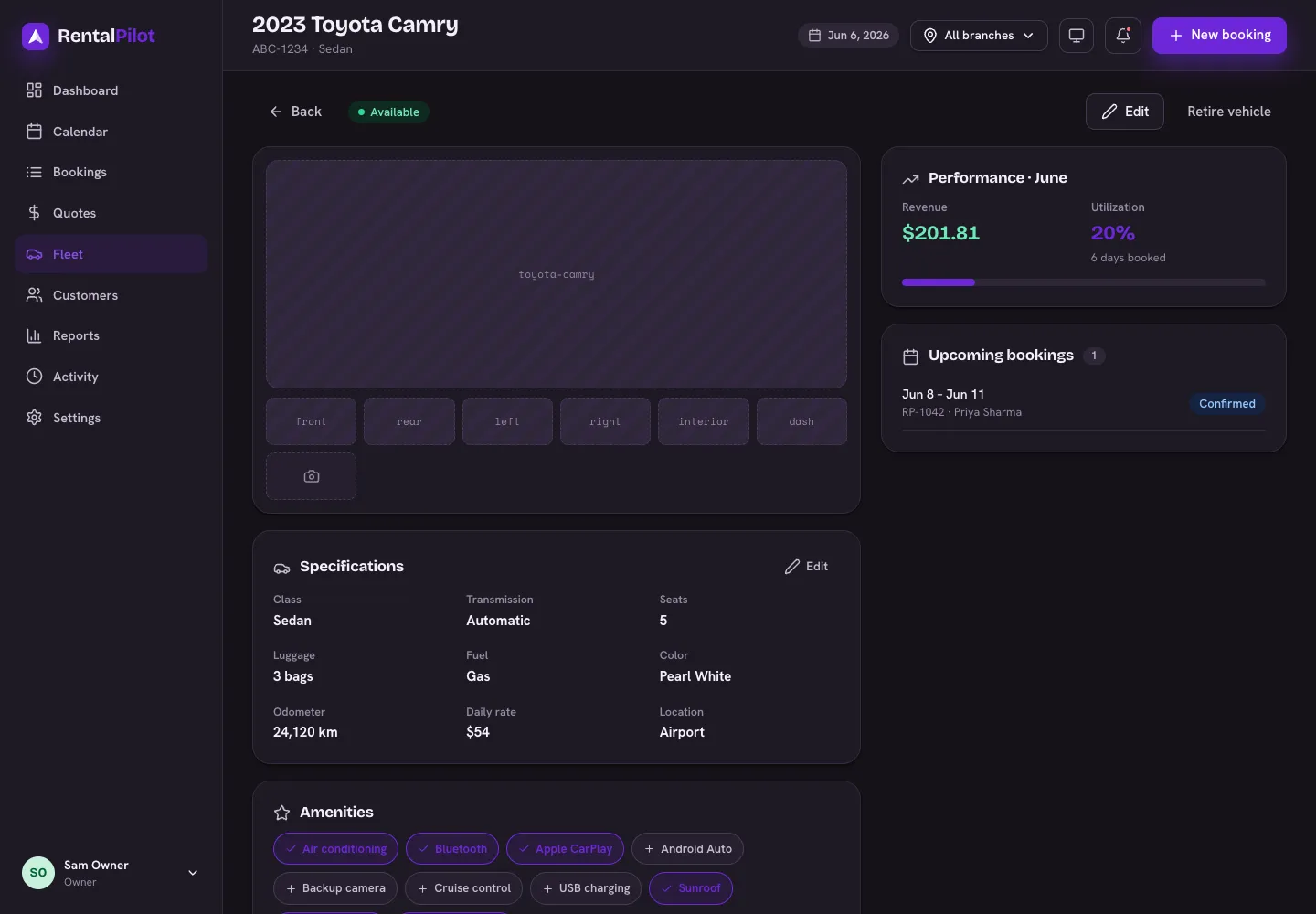
On the vehicle page, the Maintenance & service section shows whether the car is up to date, due soon, or already in service. To take it off the road, choose Send to service, set when it goes out and when you expect it back, and add a reason. The car is removed from the booking calendar so it can’t be reserved, and its status shows In service — you’ll set the real return, and the cost, when you check it back in.
Check it back in
While a car is In service, the action becomes Check in from service. Set the return date and the car goes back on the calendar — and, in the same step, you can log what the service cost:
- Category — oil change, tyres, brakes, inspection… (pick one or type your own)
- Cost, vendor, odometer and notes
- Optionally reset the next-service reminder
The cost is saved against that service and shows in the history below. Checking in without a cost is fine too — the car just returns to the fleet.
Log a one-off service
Not every service takes a car off the road. For a past repair or a quick fix that never blocked the calendar, use Log service in the same section to record the cost on its own — same fields, no block.
Every entry shows its cost, and the section totals the spend on that vehicle. Use the pencil and bin icons on a row to edit or delete it.
See maintenance costs in your reports
Open Reports → Cash flow and find the Maintenance & margin card. For the period and filters you’ve selected, it shows:
- Revenue, maintenance costs and net margin (revenue − costs),
- a breakdown by category — where the money went, and
- a per-vehicle table of services and spend (click a row to open the vehicle).
Use Export CSV to take the per-vehicle costs into your bookkeeping. For a tour of the other report tabs, see Reading your reports.
Documents
The vehicle page also lists each document (insurance, registration, inspection) with its validity and an OK or Expiring status, so renewals don’t sneak up on you.
Keeping odometer readings current — they’re captured at every check-out and check-in, and whenever you log a service — is what keeps the service-due alerts accurate.
Questions about an alert? Contact us.