
Online booking options
Choose whether customers book a specific car or a class, auto-confirm or approve bookings first, and control the emails renters receive.
A few settings control how online bookings work. The booking mode lives on Settings → Booking site, auto-confirmation is on Settings → Reservations, and booking emails are on Settings → Connections.
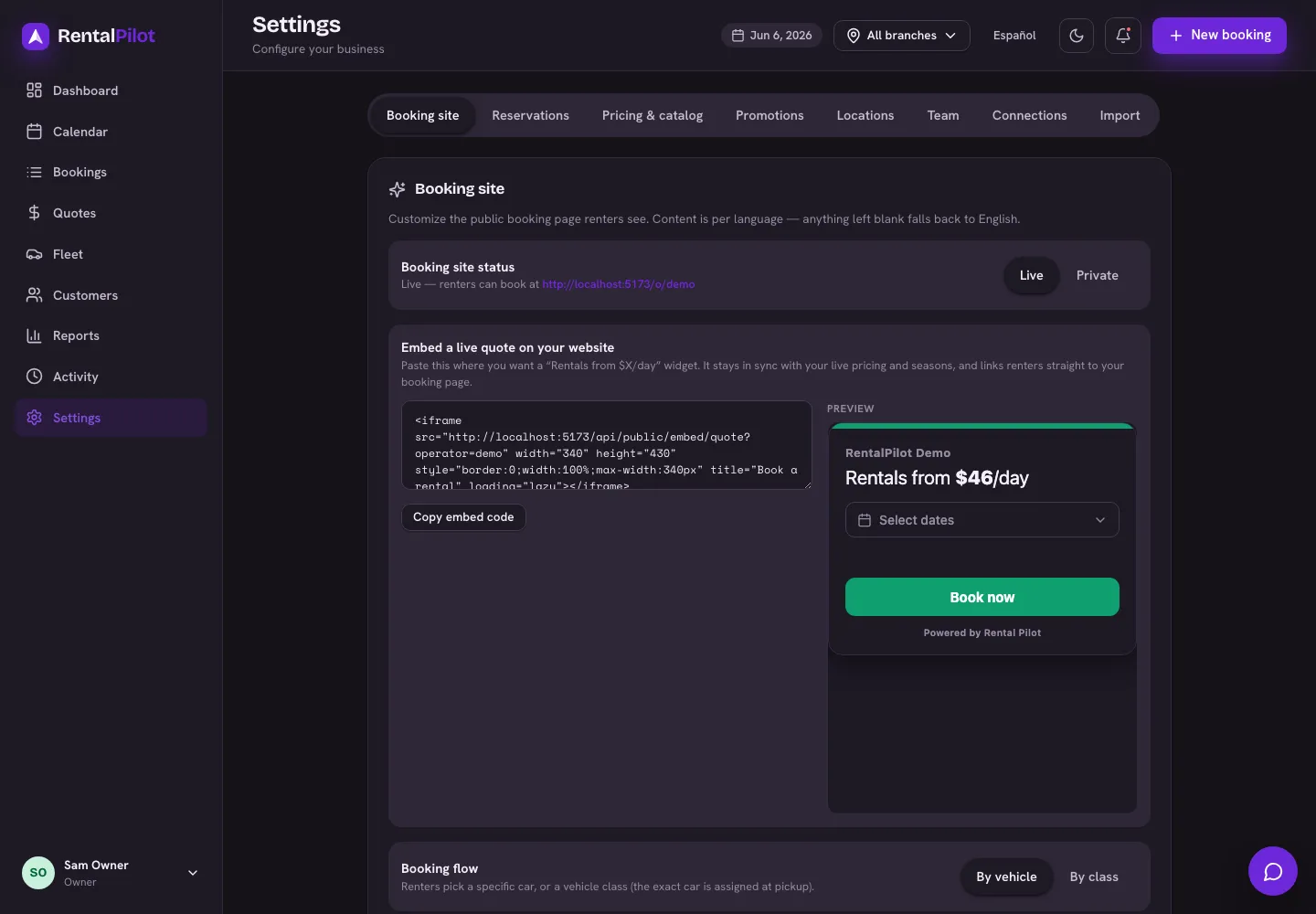
Book a specific car, or a class
Under Booking flow, choose:
- By vehicle — the customer books a specific car.
- By class — the customer books a category, and you assign the exact car at pickup. This lets you sell your whole class without over-committing a single vehicle.
(With class booking, assign a car from the booking’s detail page before check-out — see Change, extend or cancel a booking.)
Auto-confirm or approve first
Under Online booking confirmation:
- Auto-confirm — online bookings are confirmed instantly.
- Approve first — bookings arrive as pending for you to review and confirm.
When customers pay
Under Payment timing, choose when the renter pays online. A card is always saved on file, so you can always collect the balance later — these options only change when the money is taken:
- Full at booking — the whole rental total is charged when the customer books (the default).
- At pick-up — nothing is charged at booking; you collect the full amount at check-out.
- Deposit + balance — a reservation deposit is charged at booking and the rest is due at pick-up. Pick a percentage (e.g. 25%) or a fixed amount.
For the pick-up and deposit options, you collect the remaining balance from the check-out screen: either Charge card on file (the saved card, one click) or Mark paid if the customer pays in cash or on your own terminal.
Because a card is saved on file, these options require your Stripe account to be connected — see Connect Stripe to get paid.
Require proof of insurance
Turn on Require proof of insurance (on Settings → Reservations) if renters must show their own auto coverage before they drive. When it’s on, checkout asks the renter to upload a photo or PDF of their insurance — they can’t pay until they do — and the document is saved privately to the booking.
Review it any time from the booking’s detail page under Insurance proof → View. It’s stored securely and visible only to your team. Leave the setting off (the default) if you don’t need it.
Minimum rental length
Set the fewest days a customer can book online in Settings → Reservations → Minimum rental length. Leave it at 1 for no minimum (the default).
Raise it and the booking site shows the minimum under the trip dates, and a customer can’t search or book a shorter stay — a 7-day minimum, for example, turns a weekly-priced fleet into a true weekly package. The minimum applies to your whole booking site (not per vehicle), and you can still create shorter bookings yourself from the admin.
Long-term (monthly) rentals
The Long-term rentals toggle lets you offer weekly or monthly rentals billed in installments, with the discount earned by staying. It has its own guide — see Long-term & monthly rentals.
Booking emails
The Booking emails toggle controls whether renters get an automatic confirmation when they book and a notice when a booking is cancelled. When on, you can set a reply-to address so customer replies land in your inbox.
To brand the site itself, see Customize your booking site. Questions? Contact us.