
Change, extend or cancel a booking
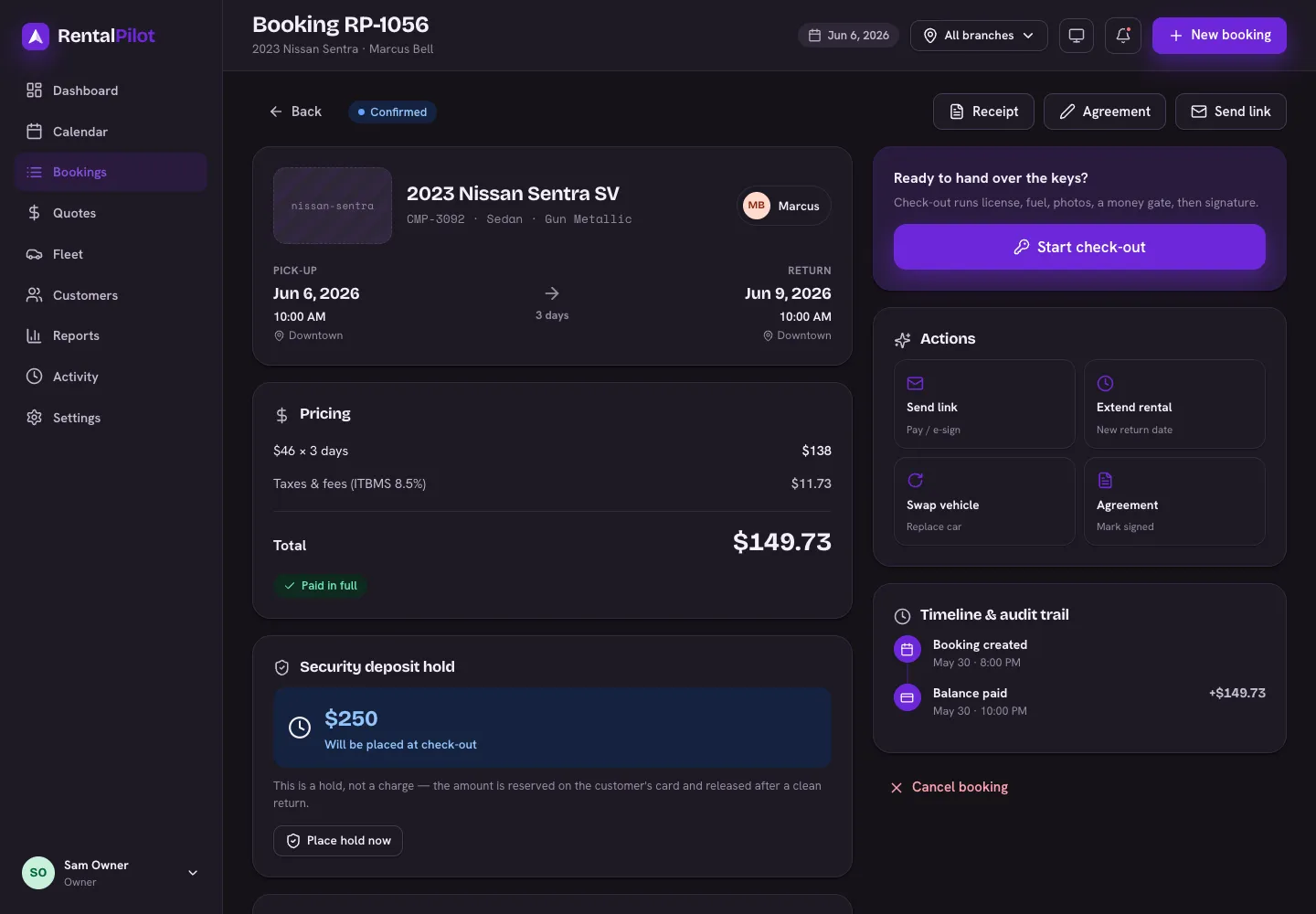
Confirm, extend, swap the vehicle, send a pay link, assign a car to a pooled booking, add extra charges, or cancel — all from the booking detail page.
Everything you do to an existing booking happens on its detail page — open it from the Calendar, the Bookings list, or a customer’s profile.
Confirm a pending booking
If you’ve set online bookings to need approval, new ones arrive as pending. Open the booking and choose Confirm booking to confirm the rental for the renter.
Extend a rental
Choose Extend rental, pick a new return date, and you’ll see the extra days and additional charge calculated live. You can charge the card on file or send a payment link for the difference.
Swap the vehicle
Choose Swap vehicle to move the booking to a different car. The rental agreement regenerates and the calendar re-blocks automatically.
Assign a car to a class booking
If the booking was made by class (no specific car yet), open it and choose the vehicle from the Assign a vehicle list. A car must be assigned before you can check it out.
Send a pay link
Choose Send link to email the customer a secure link to pay the balance — handy when they’re not in front of you. It’s minted only for a booking that still has something to pay.
There’s no separate link for signing: renters sign the agreement during checkout, and for an in-person rental the signature is captured at check-out.
Download the invoice or agreement
Use the Receipt / Invoice and Agreement buttons at the top of the page to open the PDFs (the invoice flips to a receipt once the booking is paid).
Manage the deposit hold
The deposit section lets you place a hold, release it, or capture part of it for damage — holds reserve funds on the card and are released after a clean return.
Add a fine, toll or other charge
Under Extra charges you can bill a renter for something that came up after the rental — a parking fine, a toll, extra cleaning. Choose Add a charge, pick the type, and set the amount (plus an optional admin fee). You can charge the card on file straight away or just record it and send a pay link later. See Add a fine, toll or extra charge.
Cancel a booking
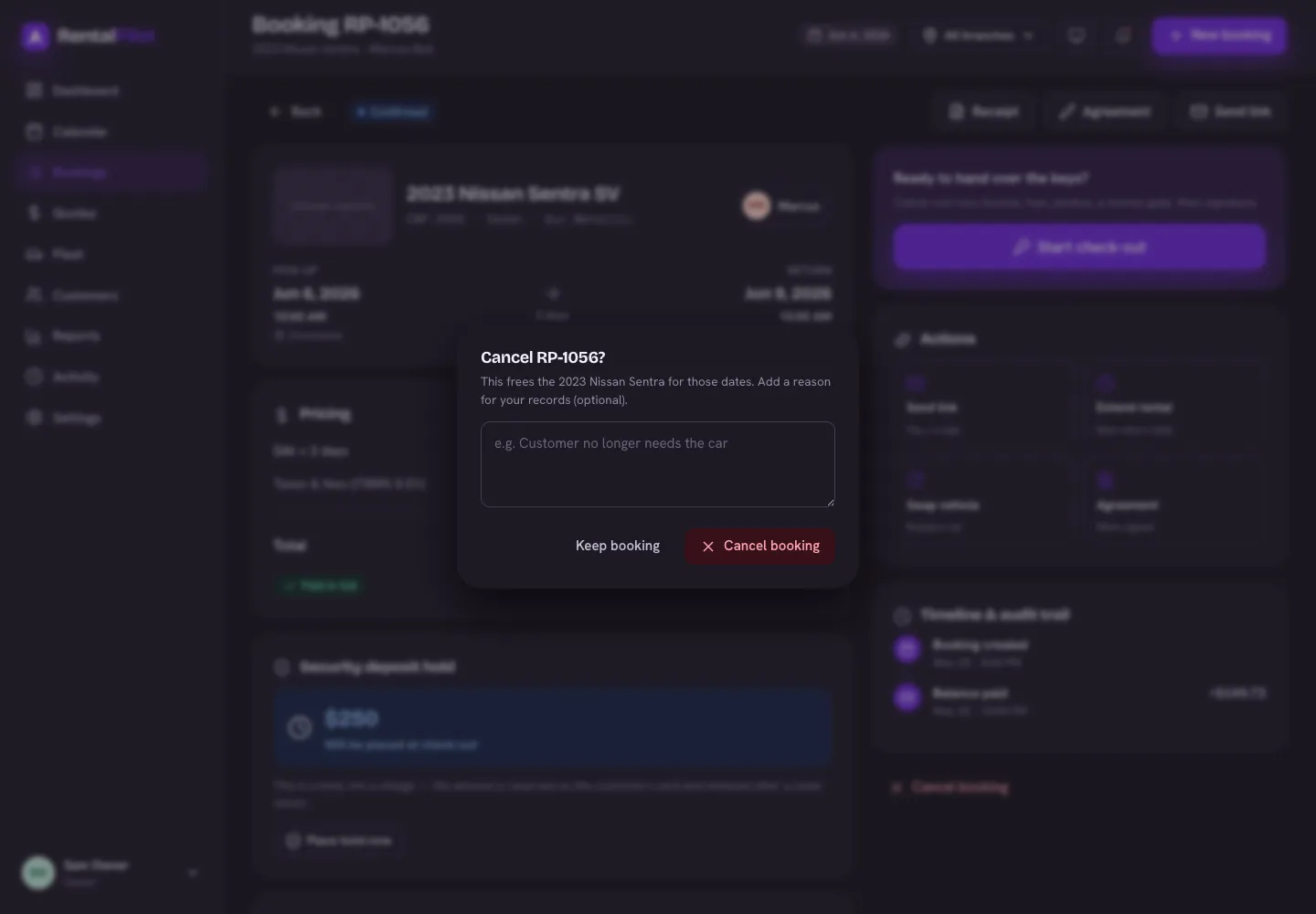
Choose Cancel booking, add an optional reason for your records, and confirm. This frees the vehicle for those dates and records the cancellation (with the reason) on the booking’s timeline and in your activity log.
Cancelling does not move any money. No refund is issued and no card is charged — the booking is simply closed out. If the customer is owed money back, refund them yourself: release or partially capture the deposit hold from the deposit section, and issue any rental refund from your Stripe dashboard. See Deposits & refunds.
The one case that refunds automatically is a customer cancelling their own booking from your booking site, inside the free-cancellation window — which is stricter than it sounds, so check What your customers can do themselves for how it’s measured.
Need help with a specific booking? Contact us.