
Check a car out and back in
Run the guided check-out at pickup (license, fuel, photos, payment gate, signature) and check-in at return (photos, damage, mileage overage, deposit settle).
Check-out and check-in are guided, step-by-step flows that capture everything you need on the record — condition photos, odometer and fuel, the signed agreement, and the deposit. Start either from the booking’s detail page.
Check-out (handing over the keys)
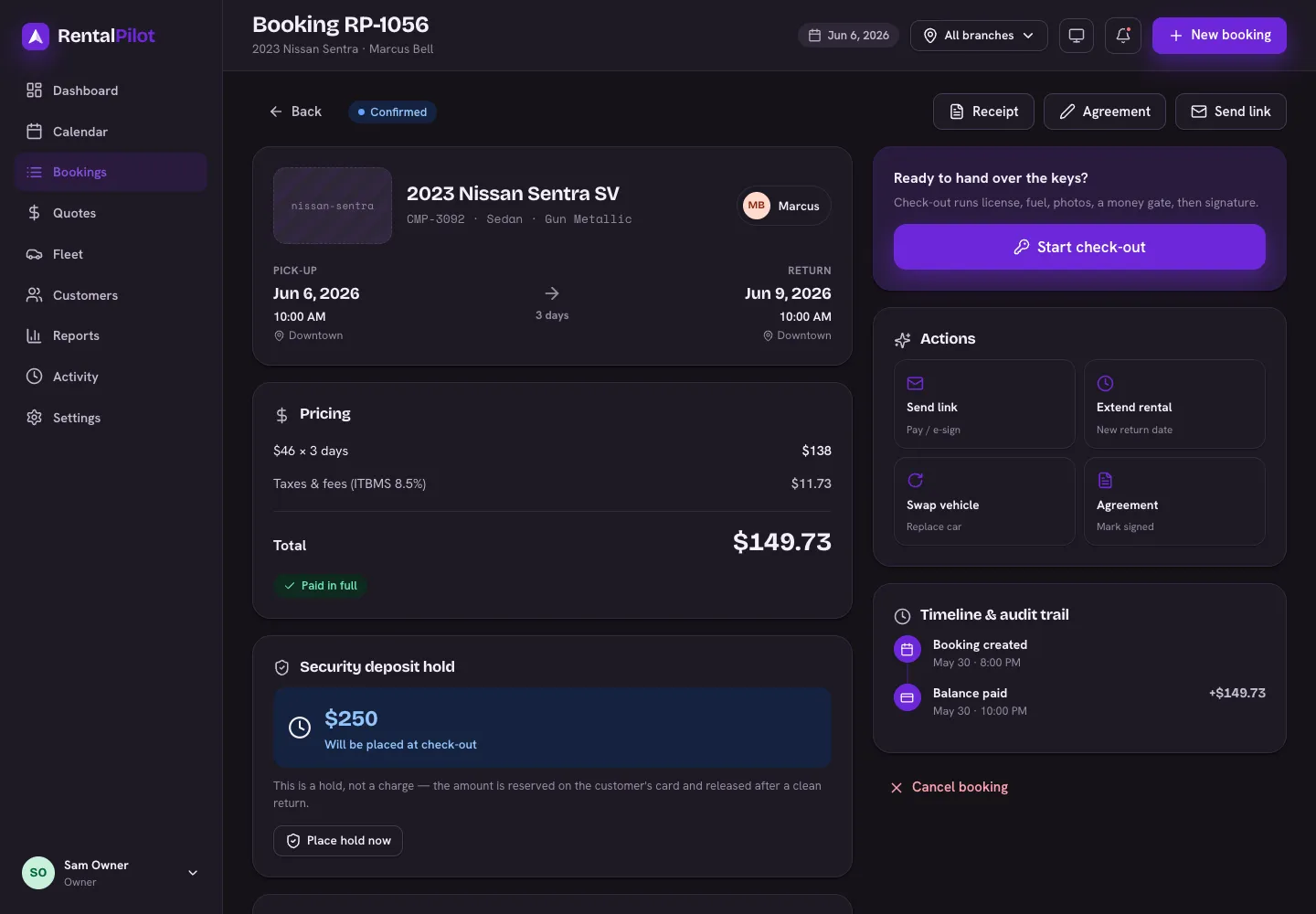
From a confirmed booking, choose Start check-out. The steps are:
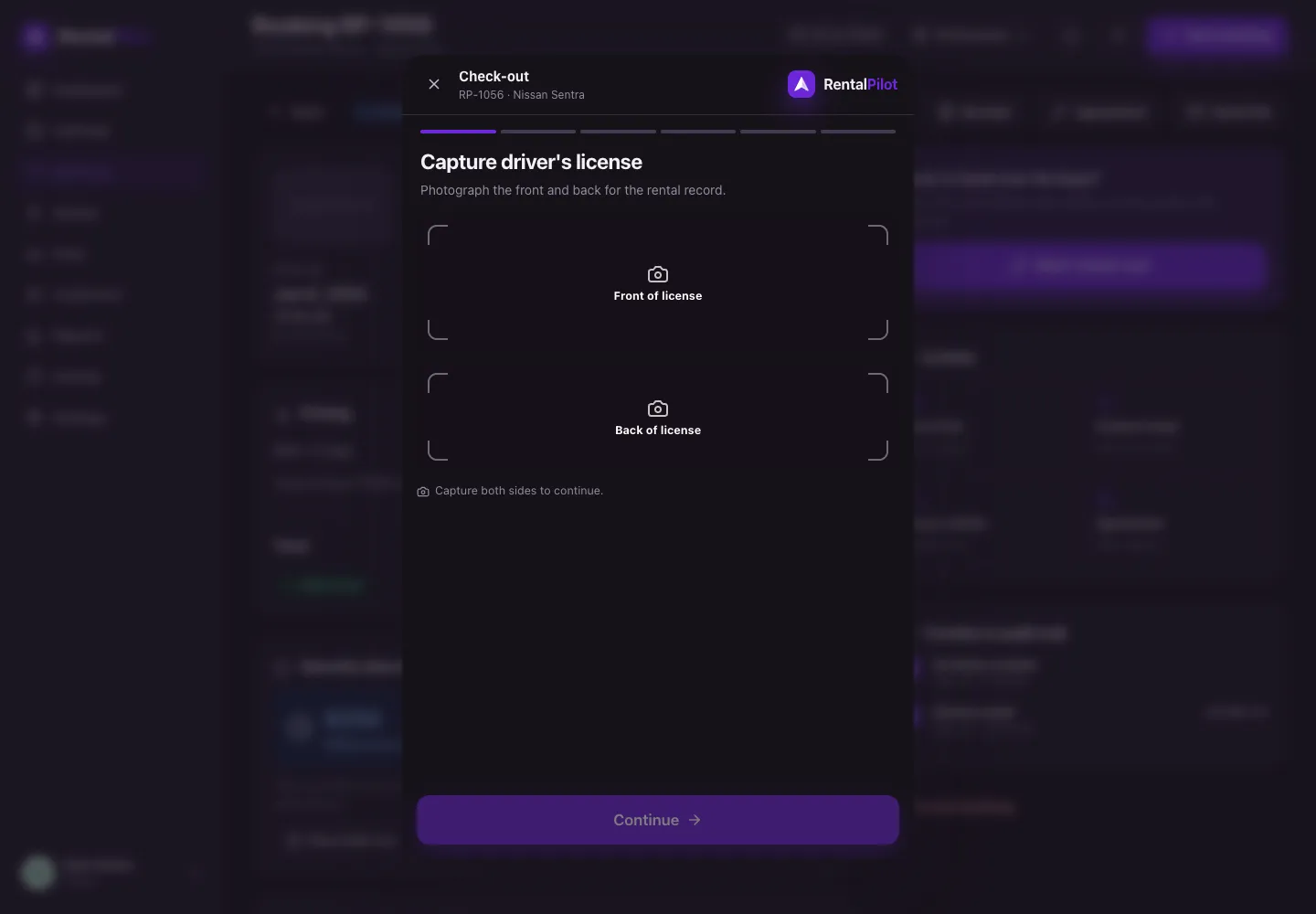
- Driver’s license — photograph the front and back for the record. If AI license checks are enabled on your account, RentalPilot reads the photos and pulls out the licence’s expiry date automatically, flagging anything that looks off. Either way, you’ll see a warning if the licence is expired or expires before the return date.
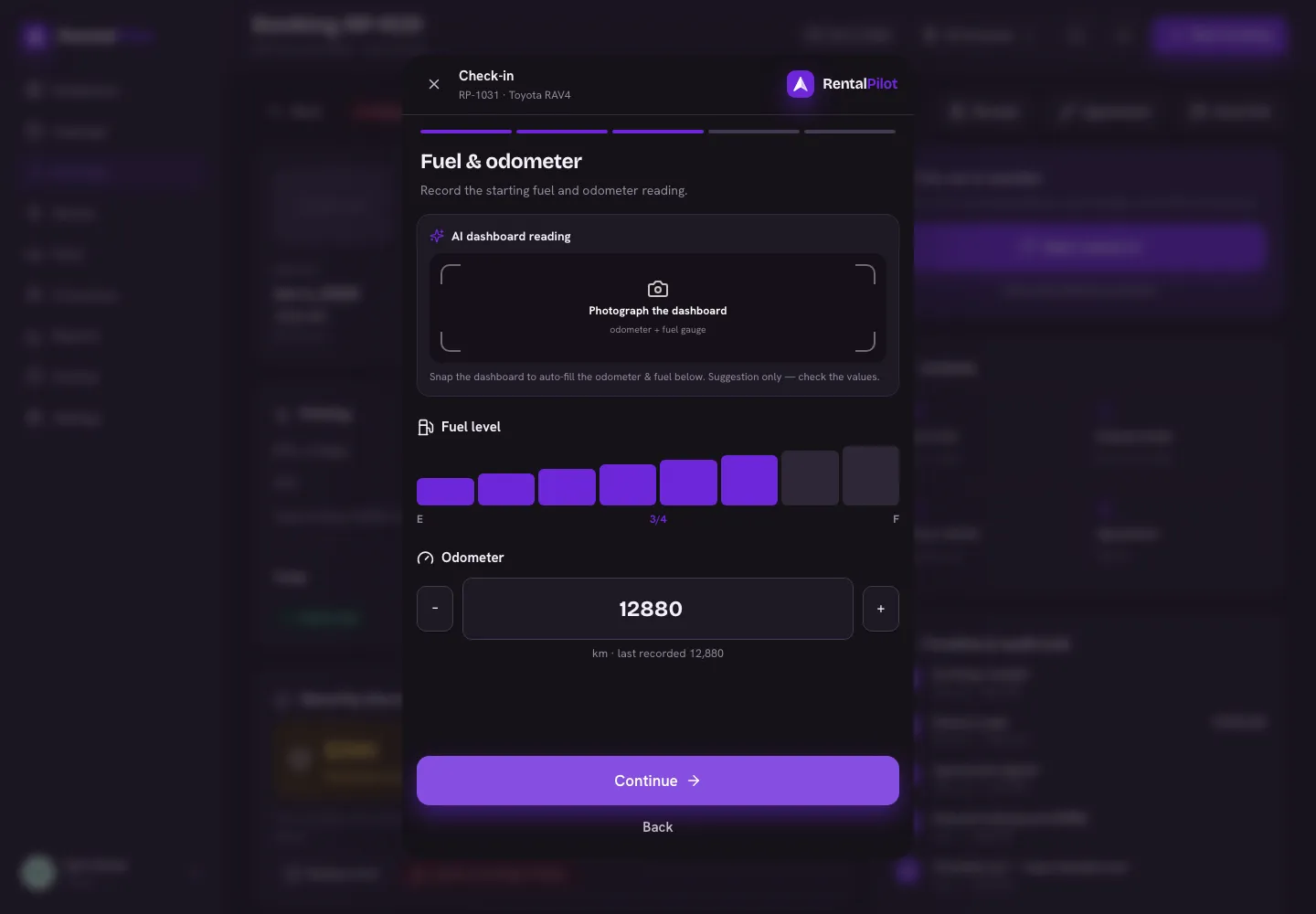
- Fuel & odometer — record the starting fuel and odometer. With AI dashboard reading turned on, you can photograph the dashboard and RentalPilot fills in the odometer and fuel level for you to confirm.
- Walk-around photos — capture the six angles (front, rear, both sides, interior, dashboard) so the condition is on record.
- Money & paperwork — a gate check before the keys leave: the balance must be paid, the deposit hold placed, and the agreement up to date. Each has a quick action button if it’s not done yet.
- Signature — the customer signs on screen to accept the agreement and authorize the deposit hold.
Manager override: if something on the money gate isn’t settled, a manager can override it with a written reason (kept on the booking’s record).
Finishing marks the car checked out.
Check-in (taking the car back)
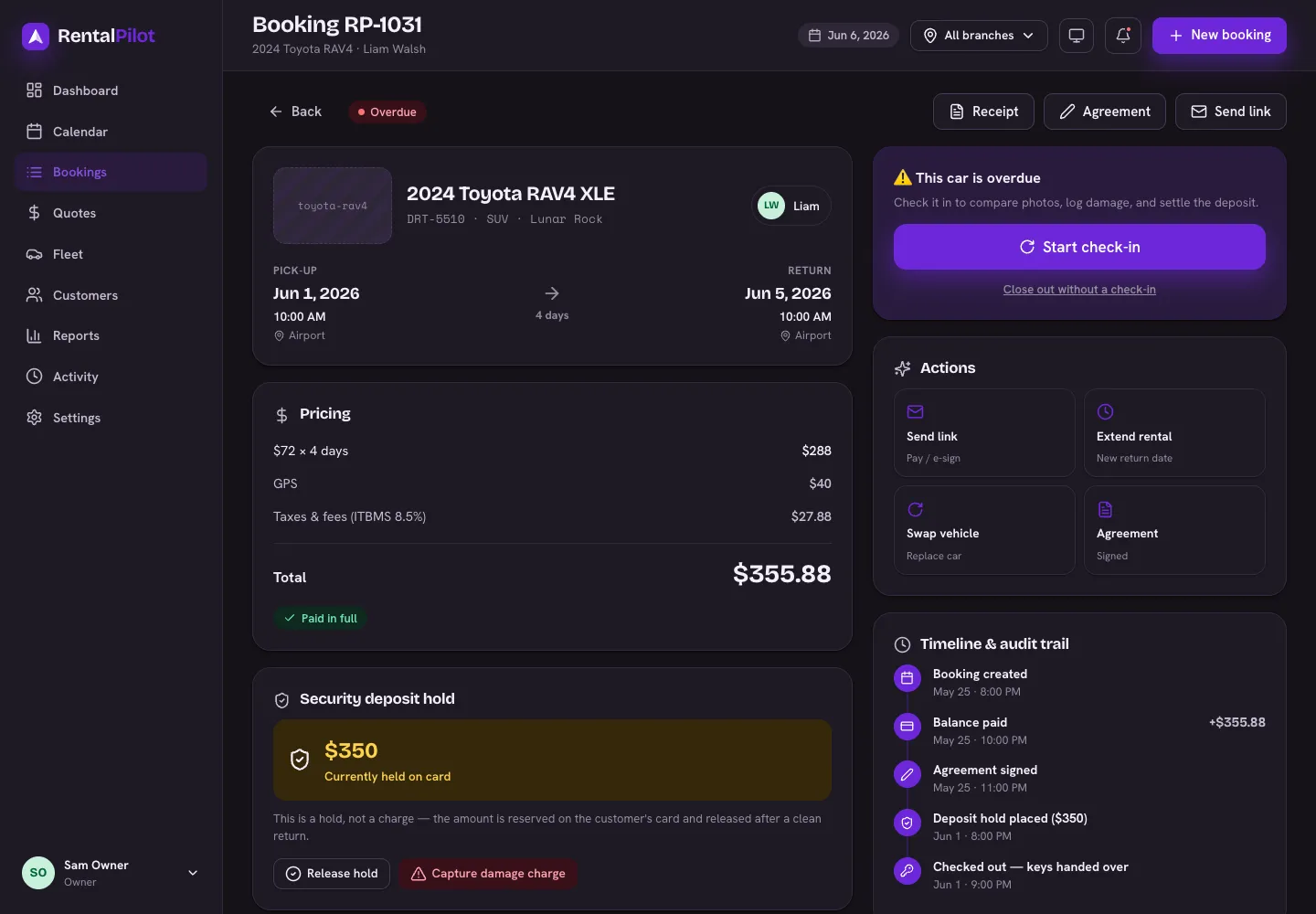
From a checked-out (or overdue) booking, choose Start check-in:
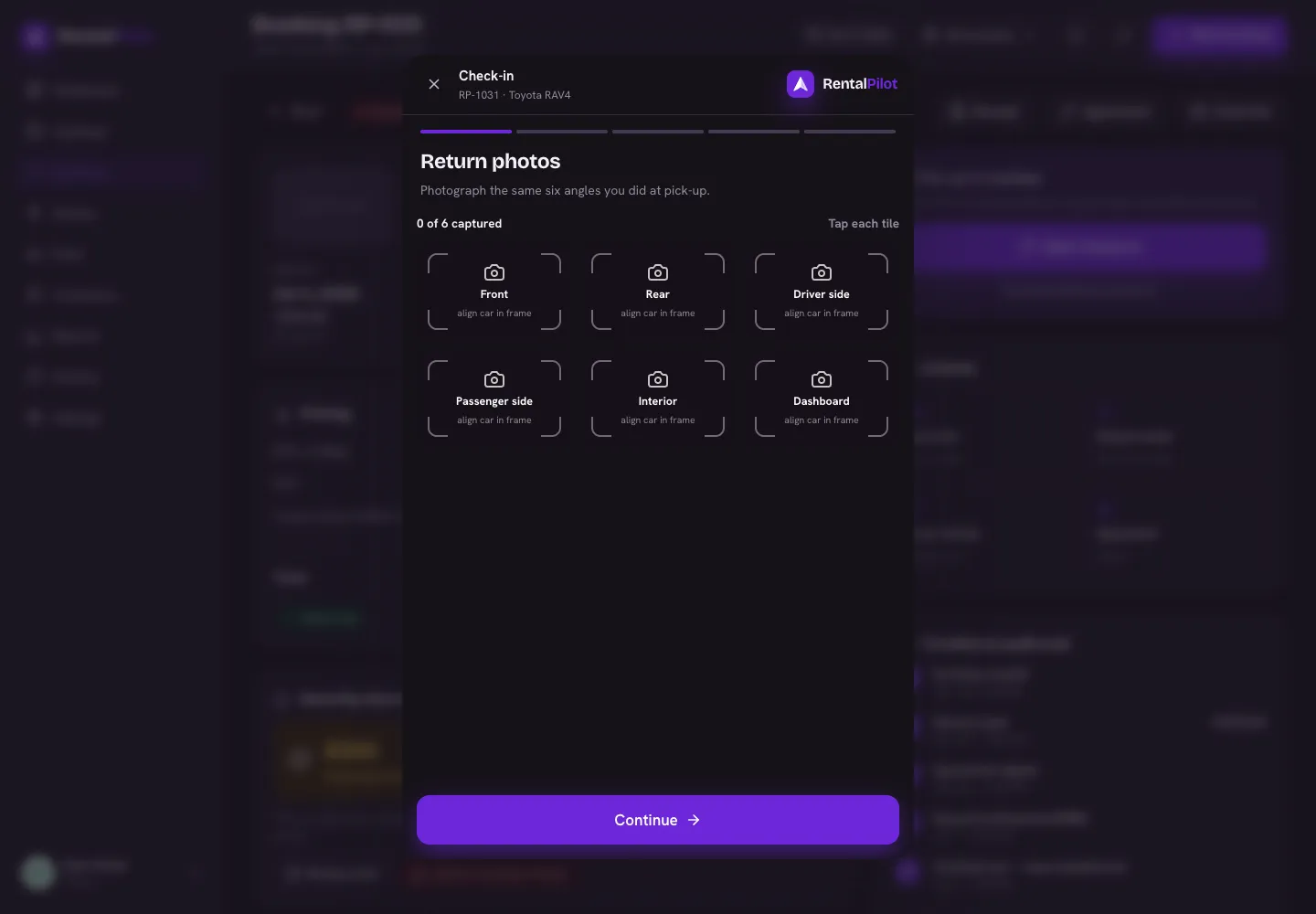
- Return photos — re-shoot the same six angles you captured at pickup.
- Inspect for new damage — run the AI damage scan to compare the pickup and return photos and suggest likely new damage (each suggestion shows where, how severe, and a confidence), or flag damage yourself. You review every finding before anything is charged, and pre-existing damage is shown so it isn’t re-disputed.
- Return fuel & odometer — record the return readings, or use AI dashboard reading to fill them from a dashboard photo.
- Close contract — the return summary, where you settle up:
- Mileage — if you run a distance allowance, you’ll see how far the car was driven, what was included, and the resulting overage charge, taken from the card on file. Set it to 0 to waive it. See Mileage limits & overage.
- Deposit — a clean return releases the full hold; logged damage is captured from the hold (up to the held amount) and the rest released.
Finishing closes the rental and returns the car to your available fleet.
The damage inspection report
Every check-in is saved as a reviewable damage inspection on the booking — the pick-up and return photos side by side, what the AI scan found, and the damage you logged with its cost. It stays on the booking, so you can pull it up to settle a dispute long after the rental closed.
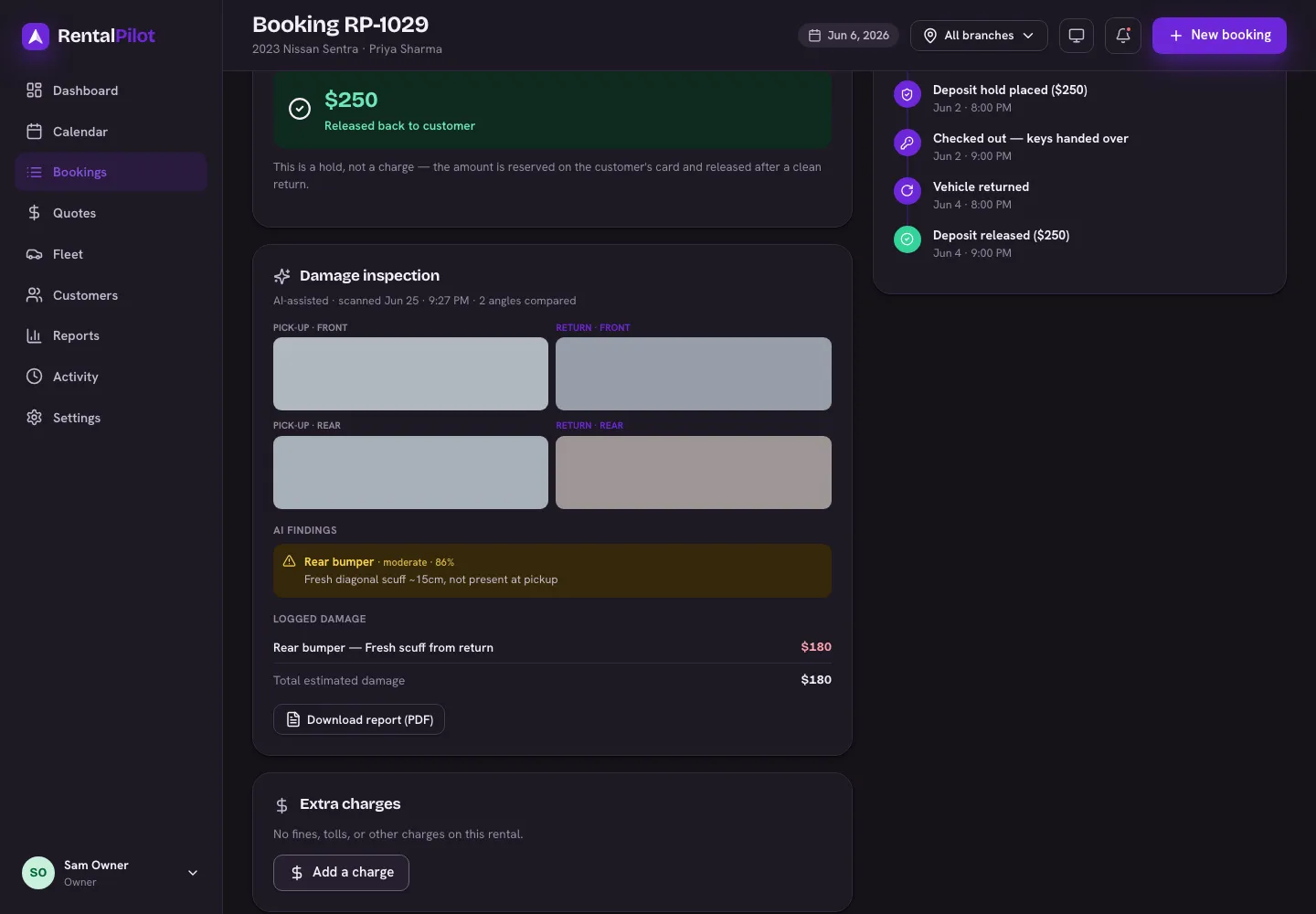
Use Download report (PDF) for a branded, shareable copy — before/after photos, the AI findings and the charge — to send a renter or insurer.
AI damage scanning, dashboard reading and licence reading are suggestions you review — RentalPilot never charges or changes anything on its own. They’re a paid feature (your plan & AI scans); turn each on or off under Account → AI features.
Questions about a specific return? Contact us.