
Add and manage vehicles
Add cars to your fleet, edit their details, upload photos, set amenities, and retire or restore vehicles.
Your fleet lives under Fleet in the left-hand menu. You can search, filter by category, status or location, and switch between grid and list views.
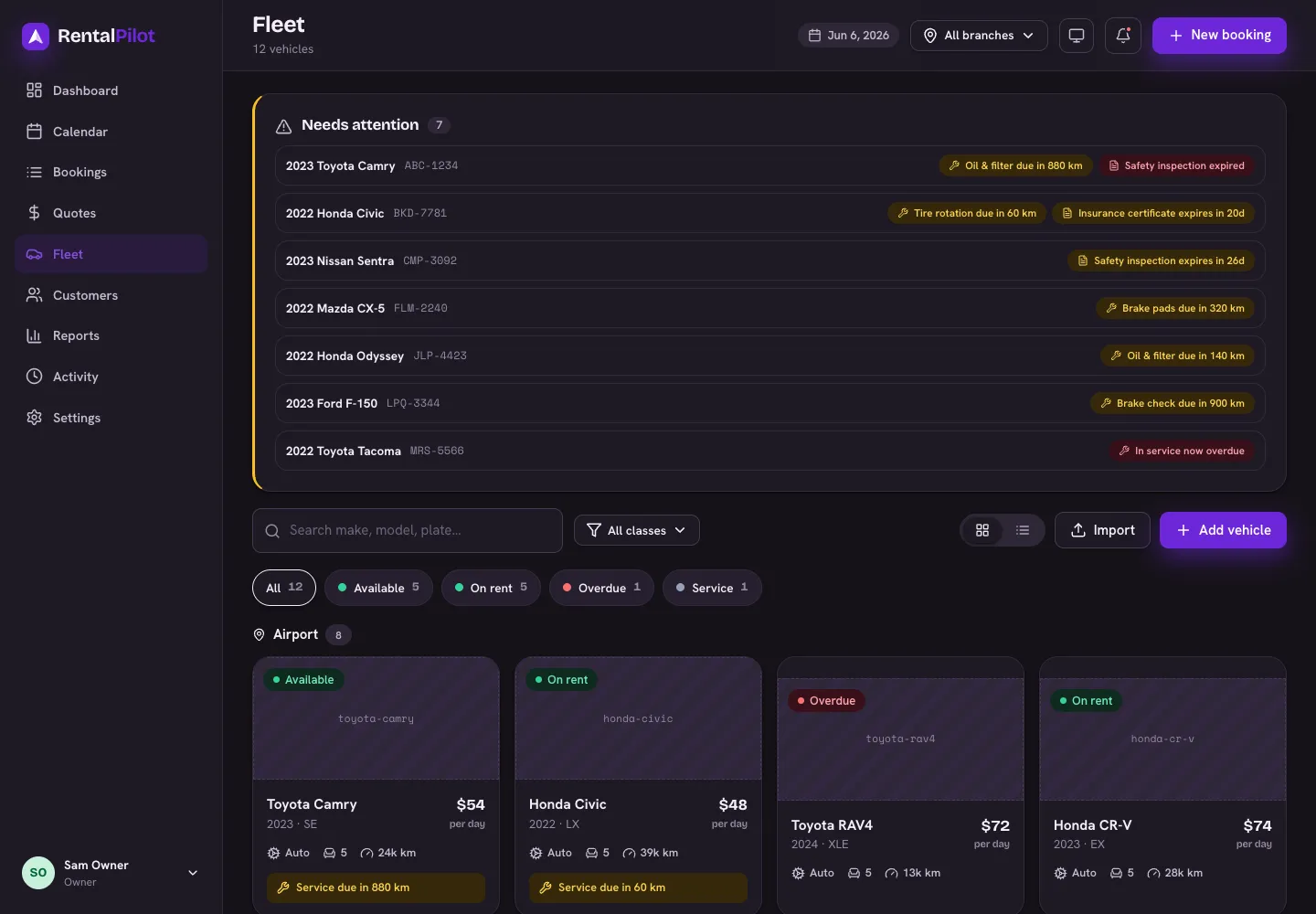
Add a vehicle
Choose Add vehicle and fill in:
- Make, model, year and an optional trim
- Category — your own vehicle classes (managed in Settings → Pricing & catalog)
- Plate — must be unique across your fleet
- Daily rate — the base price per day (must be above 0)
- Transmission, fuel, seats, luggage, and optionally odometer, VIN, colour and location
Save and you’ll land on the vehicle’s detail page. (Have a whole fleet to load? See Import your data.)
Location: set the branch a car belongs to, or leave it blank to make it available at every location. Blank-location cars show up at all your branches — handy for a vehicle you move between sites. See Locations & pick-up points.
Edit details and photos
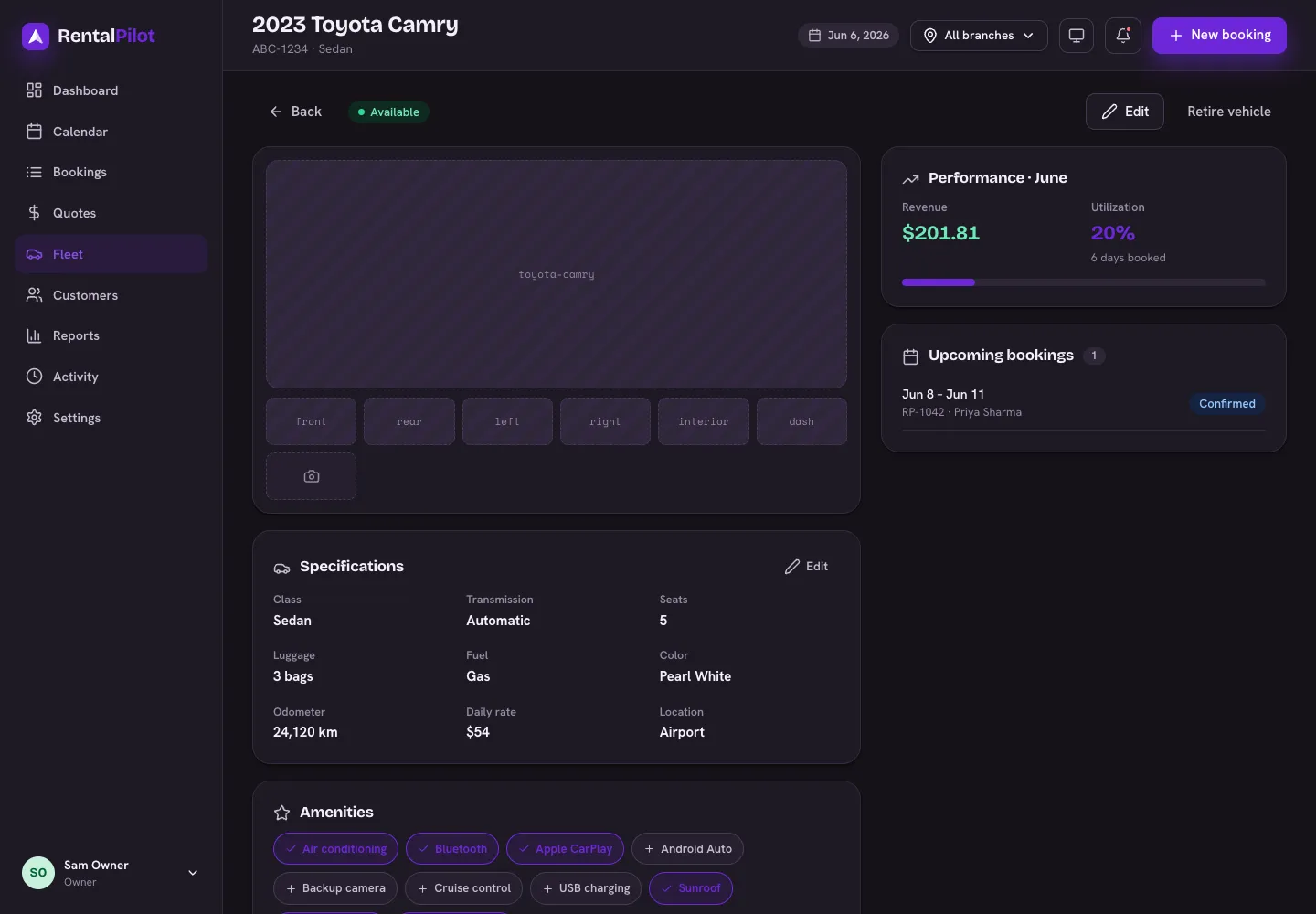
On the vehicle’s page:
- Edit updates any of the specs above.
- Add photo uploads images (up to 12). The first photo is the main one renters see; you can remove any.
Set amenities
Toggle the amenities this vehicle has (Apple CarPlay, roof rack, etc.). Renters see these as badges and can filter by them. The amenity list itself is managed in Settings → Pricing & catalog.
Retire or restore a vehicle
When a car leaves your fleet, choose Retire vehicle. It’s hidden from booking and from your active fleet, but its history is kept. Retired vehicles appear in a collapsible Retired section, and Restore to fleet brings one back.
To take a car off the calendar temporarily (rather than retire it), block it for maintenance — see Maintenance & fleet alerts.
Need a hand? Contact us.