
Import your data from a spreadsheet
Bring your customers and fleet over from another provider with a CSV — validated row-by-row with a preview before anything is saved.
Moving from another system? You can bulk-import your customers and vehicles from a CSV in Settings → Import. Every row is validated and shown to you before anything is saved, and re-running an import is safe.
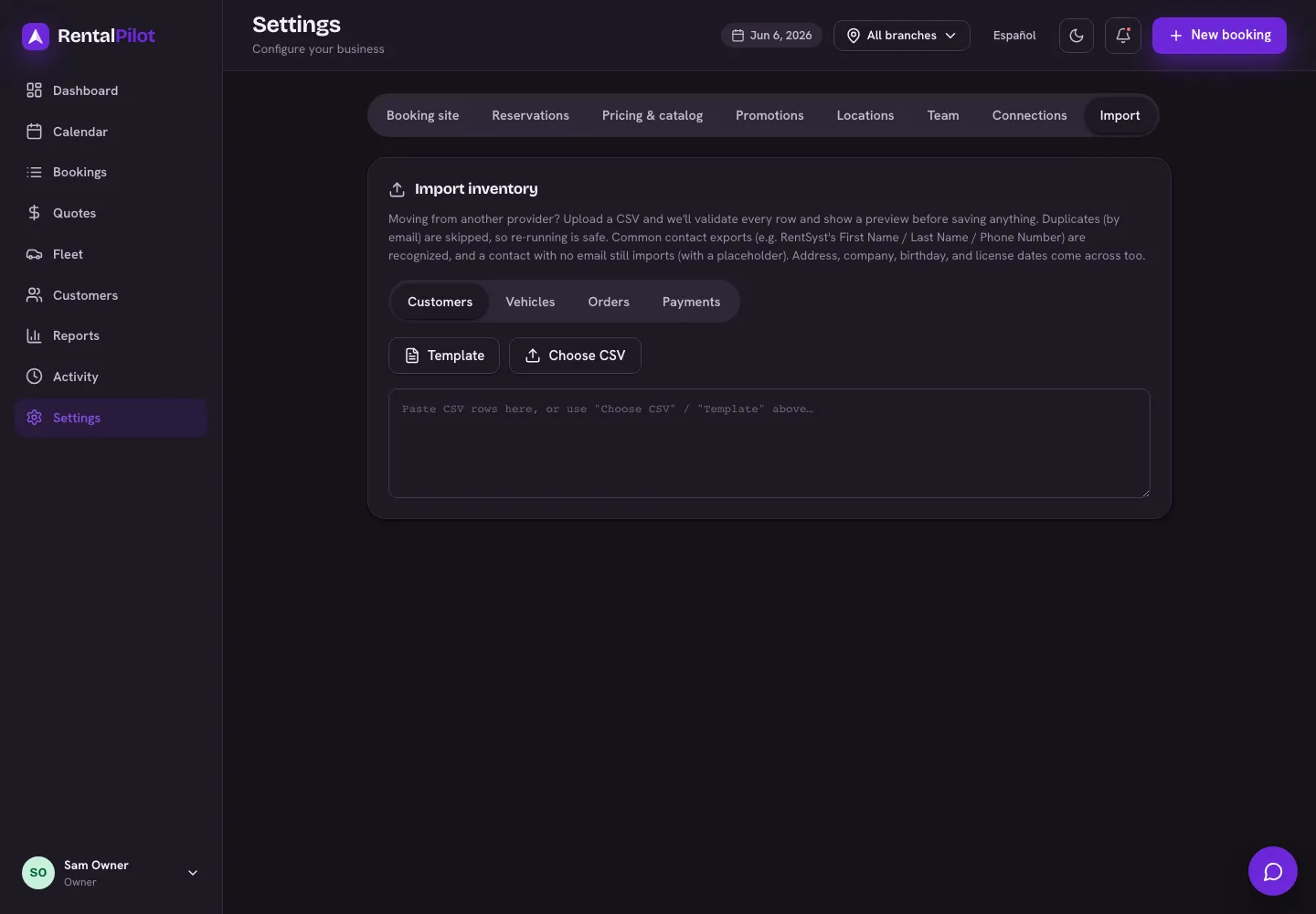
Import customers or vehicles
- Open Settings → Import and choose Customers or Vehicles.
- Download the Template to see the expected columns, or paste your existing CSV (common provider exports are recognised automatically).
- Add your rows — use Choose CSV to upload a file, or paste into the box.
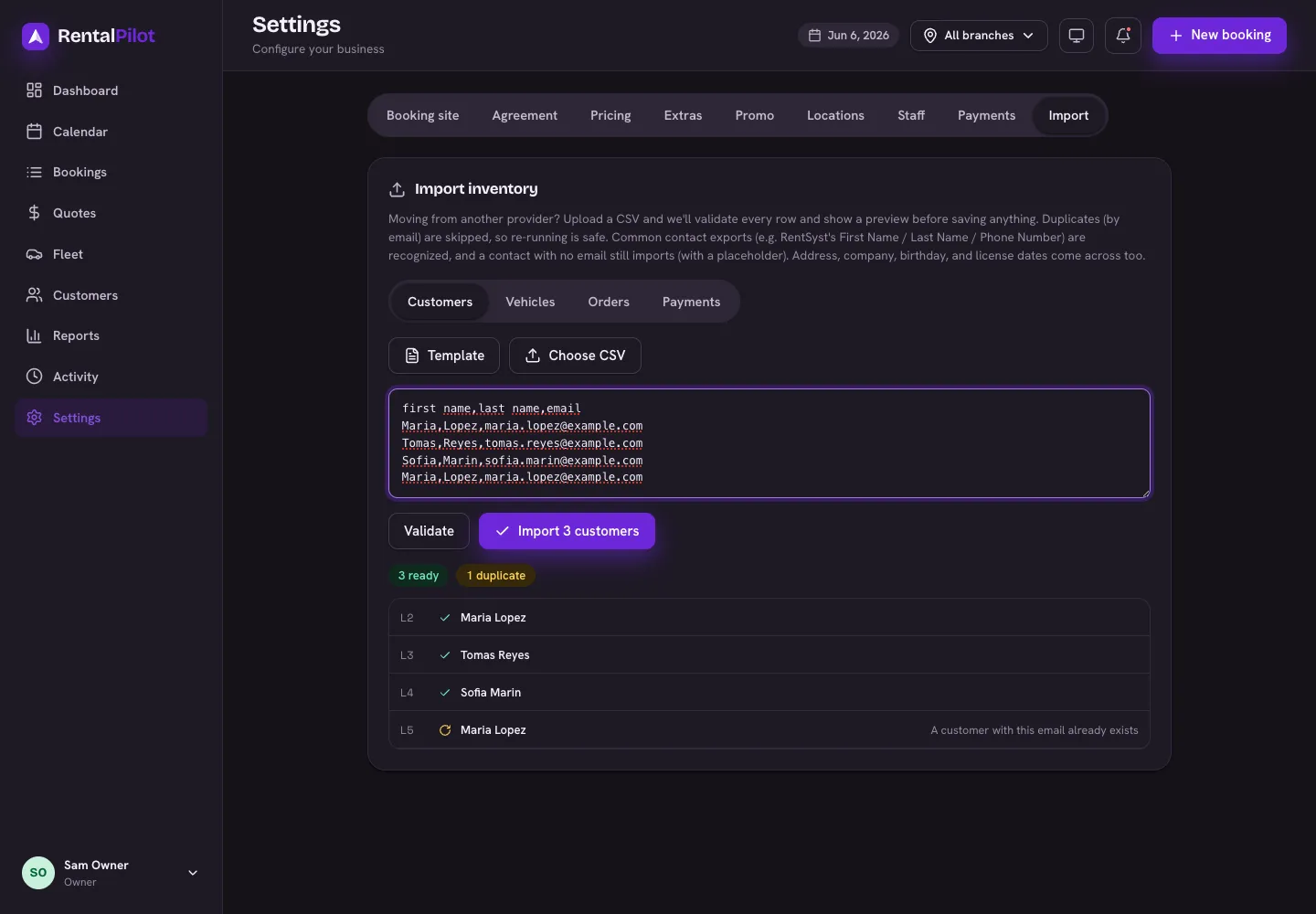
- Choose Validate. Each row is checked and marked ready, duplicate, or error, so you can fix problems before committing.
- Choose Import to save the rows that are ready.
Map columns with AI
If your file’s headers don’t match — a different provider, a spreadsheet a colleague built, or another language — choose Map columns with AI. RentalPilot reads your headers (and a few sample rows) and matches each one to the right import field, with a confidence for each. Adjust anything that looks off, then Apply — your file is re-mapped and runs through the same validation and preview, so nothing is saved until you’ve checked it.
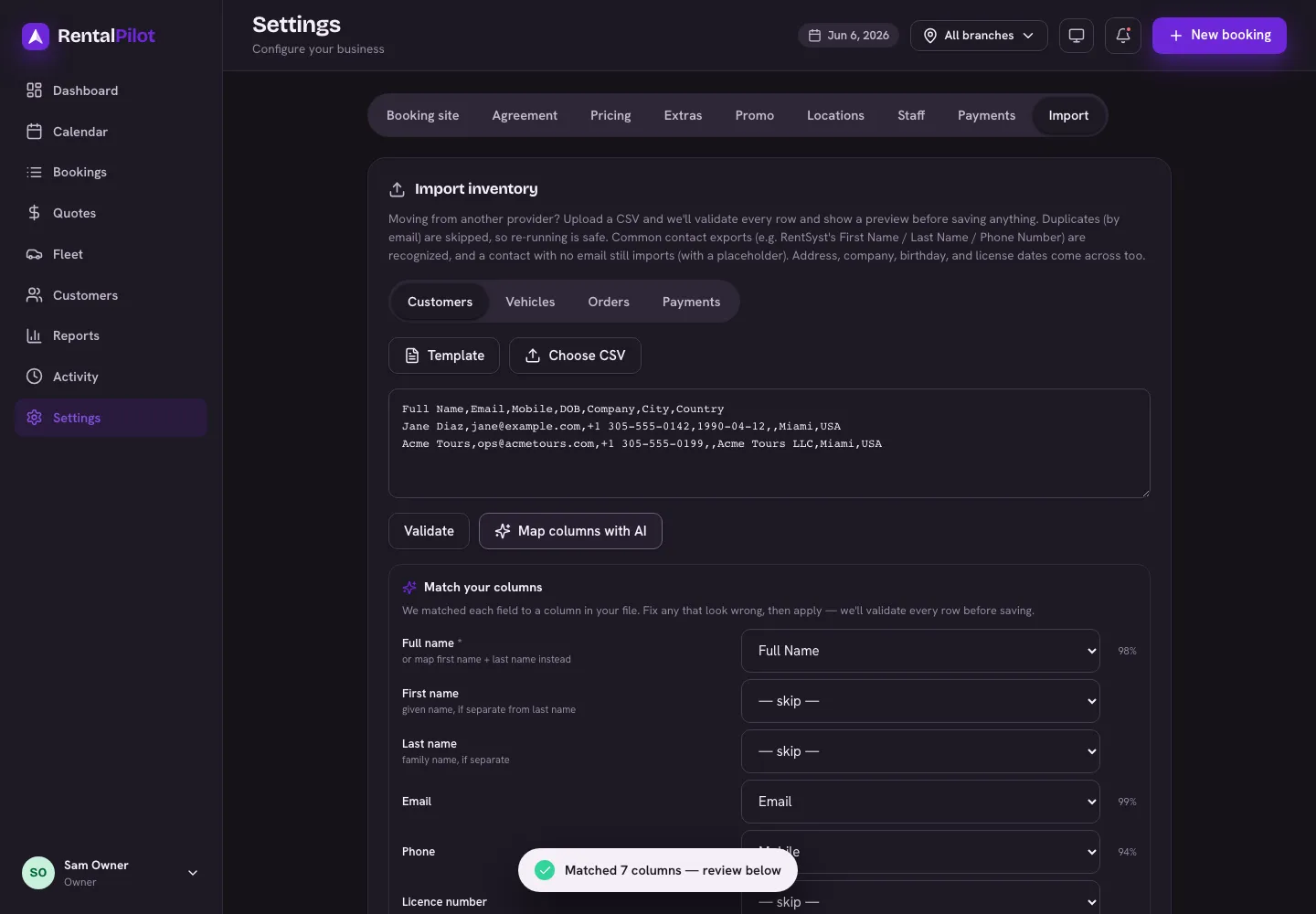
It’s a suggestion you review, and counts as one AI scan against your monthly allowance. Turn it on or off under Account → AI features.
What you can include
A minimal file works fine — for customers just name and email, for vehicles the make, model, plate and daily rate. But you can bring far more across if your export has it:
- Customers — as well as name, email and phone, you can map a mailing address, company name and tax/VAT number, date of birth, driver-license number, issue and expiry dates, and a group/segment tag. Columns we don’t recognise (or that are empty) are simply skipped.
- Vehicles — category, transmission, fuel, seats, odometer, VIN, colour and location.
How duplicates and new entries are handled
- Customers are de-duplicated by email, and vehicles by plate — both against what’s already in your account and within the file. So a contact or car that already exists is skipped, and re-running the same import won’t create duplicates.
- For vehicles, any new categories or locations in your file are created for you — and shown in the preview first, so you can catch a typo before committing.
- Vehicle imports respect your plan’s fleet limit; rows over the limit are flagged.
Import orders and payments
You can also import Orders and Payments to bring existing rentals and their payment history across. Import your fleet first so vehicles match by plate, then review the reservation dates and statuses before saving.
Saving an order import does not send a booking confirmation, charge a card, or ask the renter for card details. A payment import records money already collected by your previous provider; it does not collect that money again.
Need a hand with a migration? Contact us — we’re happy to help.