
Get the most from the calendar
Read booking details at a glance, hover for the full picture, right-click for quick actions, and go full-screen or print the schedule.
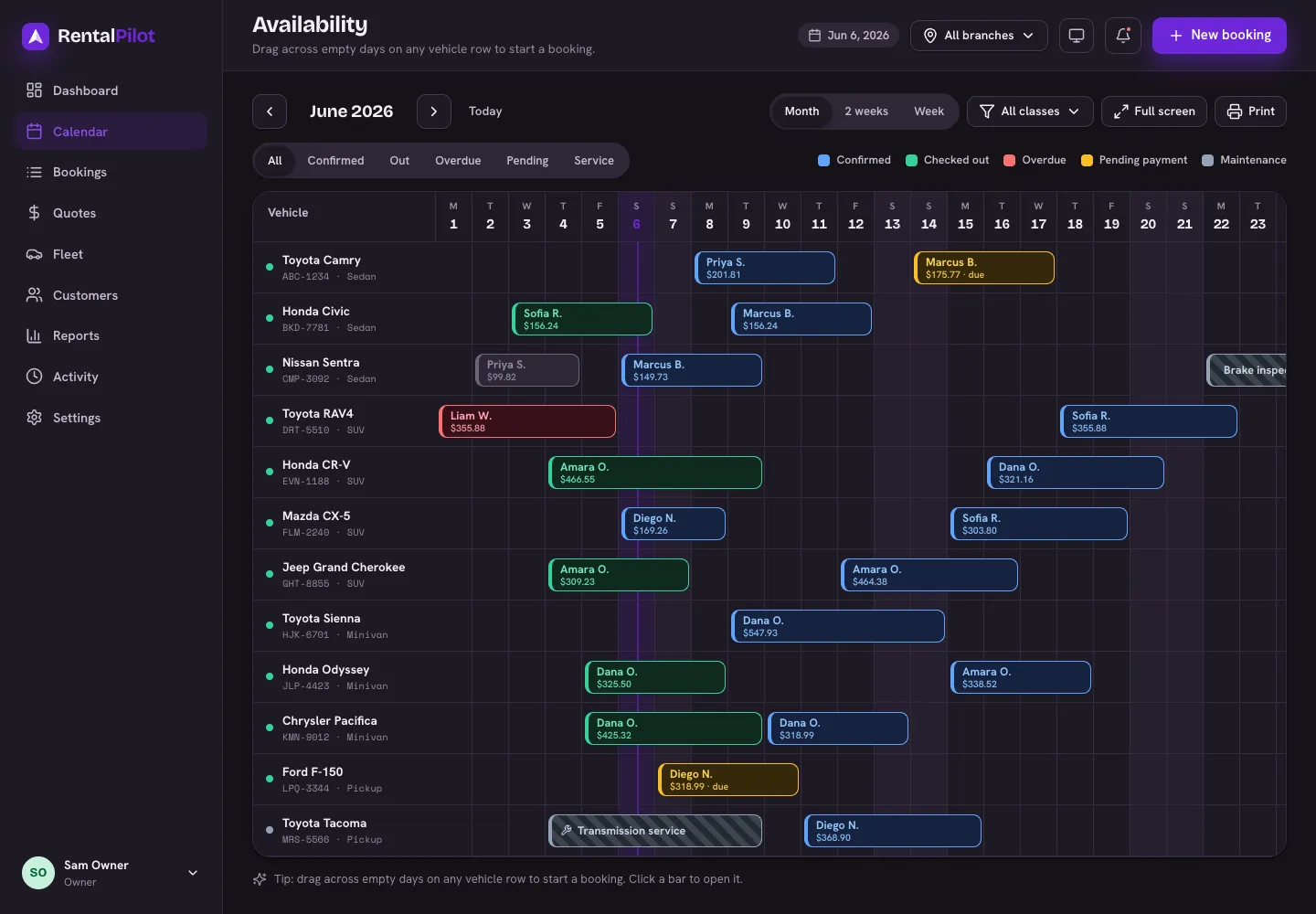
The Calendar (Availability) shows every booking as a coloured bar across your fleet. Beyond the colour-coded status, there are a few ways to get more out of it.
Details at a glance
Each booking bar shows the driver and the total price. If a booking still has a balance owing, you’ll see a · due marker next to the price — so you can spot unpaid rentals without opening them.
Hover over any bar to open a detail card with the full picture: booking ID and status, driver, vehicle, pick-up and return dates/times, total, balance due, and the deposit hold.
Right-click for quick actions
Right-click a booking bar for a menu of actions without leaving the calendar:
- View details / Open in new tab
- Start check-out or Start check-in (depending on the booking’s status)
- Close out an overdue rental — see Clean up old or overdue bookings
- Cancel the booking
- Delete — only for maintenance blocks and unpaid quotes/pending bookings; anything with money or history is cancelled instead
Right-click an empty day on a vehicle’s row to start a New booking here, pre-filled with that car and date.
Tip: you can also drag across empty days on a vehicle’s row to start a booking for that window.
Focus on one location
If you run more than one location, use the location switcher in the top bar to focus the calendar — along with your dashboard, fleet and reports — on a single branch, or choose All branches to see everything at once. Team members limited to certain branches only ever see those. See Locations & pick-up points.
Full screen & printing
- Full screen turns the calendar into a wall-board view — handy for a counter or back-office display.
- Print produces a clean, landscape printout of the schedule, without the app’s menus. The Week and 2-week views print most cleanly; for a whole month, use your browser’s “fit to page” scaling.
Need a hand? Contact us.