
Clean up old or overdue bookings
Resolve rentals stuck as 'overdue' — including imported history that was never checked in — by closing them out without a check-in.
A booking shows as overdue when it’s still checked out and its return date has passed. That’s expected for a car that’s genuinely late — but it also happens to old or imported bookings that were never formally checked in, which can pile up showing as hundreds of days overdue. Here’s how to clear those out.
Close out a single booking
Open an overdue booking and choose Close out without a check-in (below the check-in button). This:
- marks the rental closed,
- releases any deposit hold,
- takes no payment, and
- records the action on the booking’s timeline.
Use it for records that were never returned through the app. For a genuine return, use check-in instead — it captures odometer, fuel and photos and settles the deposit.
Clean up several at once
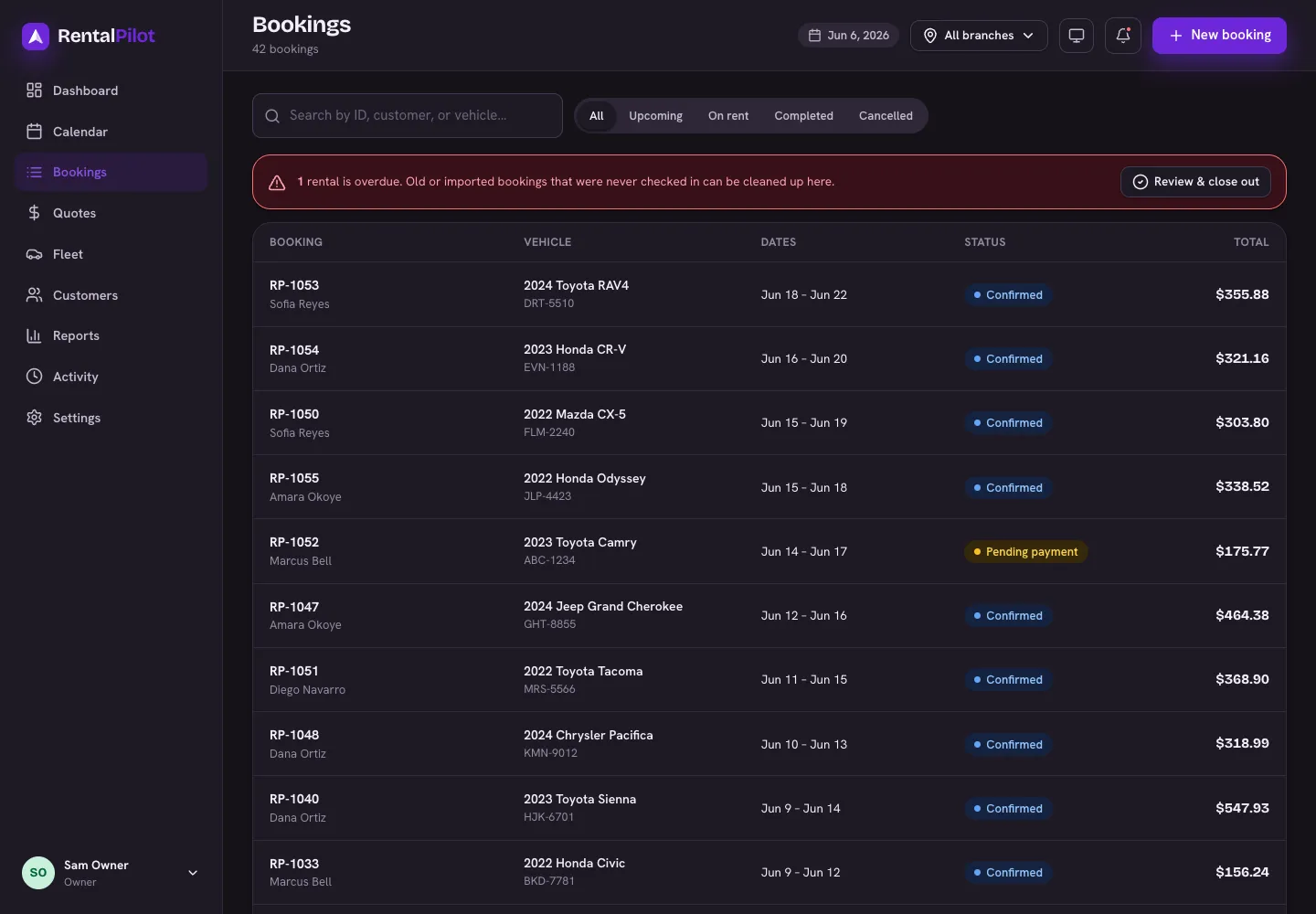
On the Bookings page, when you have overdue rentals you’ll see a banner: “… rentals are overdue.” Choose Review & close out to open the cleanup tool, which lists every overdue rental, most-overdue first:
- Rentals more than 60 days overdue are pre-selected (almost certainly old records) — but you can check or uncheck any of them.
- Optionally add a reason; it’s saved to each booking’s timeline.
- Choose Close out to finalize them all at once.
Closing out is for tidying up history — it never charges a card, and you can still open any closed booking to see its full record.
Need a hand? Contact us.