
Set up two-factor authentication (2FA)
Add a second step at sign-in with an authenticator app, save your backup codes, and learn how to sign in or turn 2FA off.
Two-factor authentication (2FA) adds a second step when you sign in: after your password, you also enter a short code from an app on your phone. Even if someone learns your password, they can’t get into your account without that code. It’s optional, but strongly recommended — especially for owners, who can see customer details and issue refunds.
You’ll need an authenticator app on your phone. Any of these work: Google Authenticator, Microsoft Authenticator, Authy, or a password manager like 1Password.
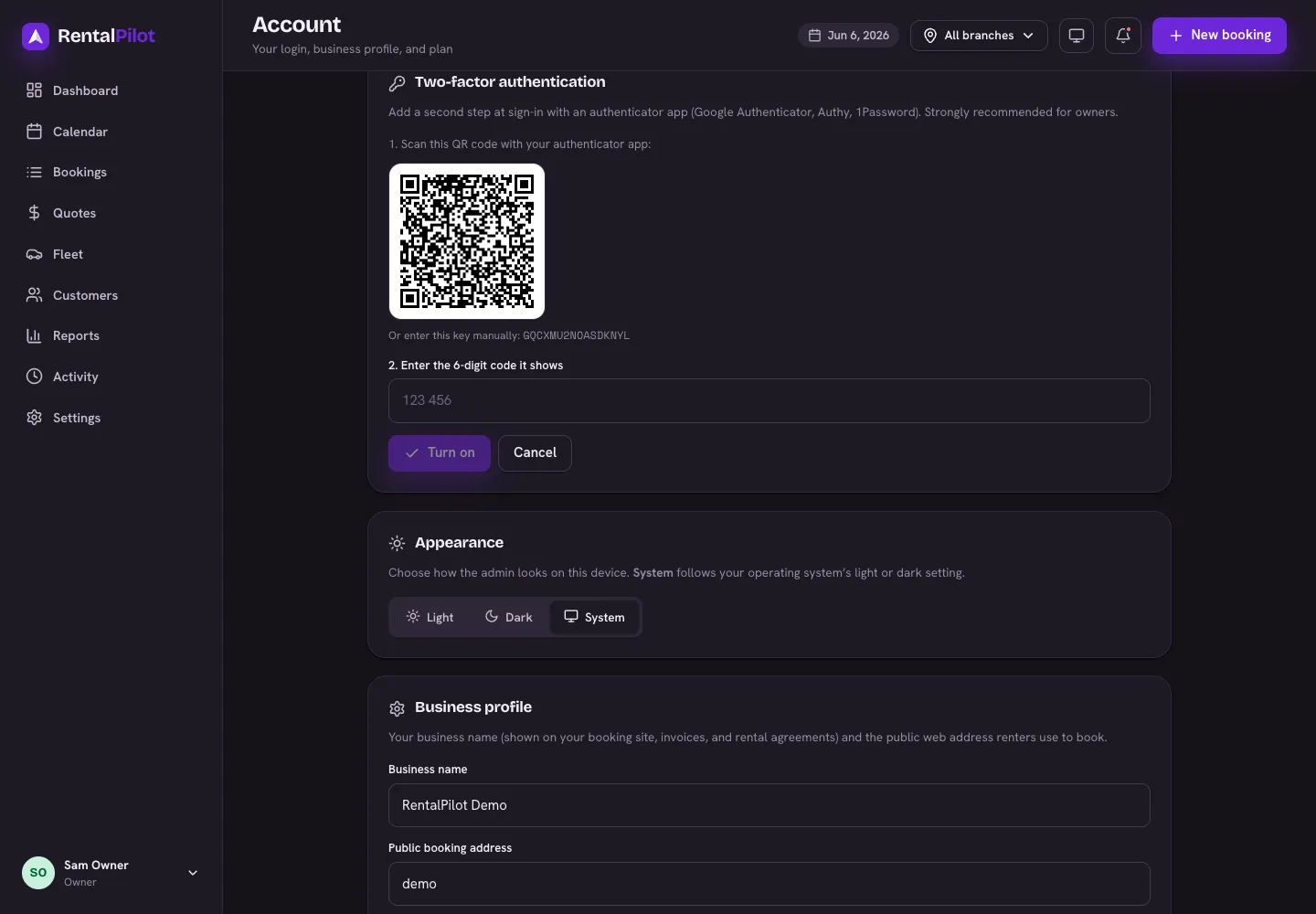
Turn it on
- In the operator app, click your name and photo at the bottom of the left-hand menu and choose Account.
- Find the Two-factor authentication card and choose Set up two-factor.
- In your authenticator app, add a new account and scan the QR code shown on screen. (Can’t scan? Enter the key shown beneath the code by hand instead.)
- Your app will start showing a 6-digit code that changes every 30 seconds. Type the current code into the box and choose Turn on.
That’s it — 2FA is now on for your account.
Save your backup codes
As soon as you turn 2FA on, you’ll be shown a list of backup codes. These are your way back in if you ever lose your phone.
- Each code works once. Use one in place of the app code when you sign in.
- Save them somewhere safe now — print them, or store them in your password manager. They are shown only once and can’t be retrieved later.
When you’ve saved them, choose I’ve saved my backup codes.
Signing in with 2FA on
- Enter your email and password as usual.
- On the next screen, enter the 6-digit code from your authenticator app and choose Verify.
No phone handy? Choose to enter a backup code instead — remember each one only works once.
Turn it off
- Go to Account → Two-factor authentication and choose Turn off.
- Confirm with your account password.
You can turn 2FA back on any time — you’ll get a fresh QR code and a new set of backup codes.
Locked out? If you’ve lost your authenticator app and your backup codes, you won’t be able to sign in on your own. Contact us and we’ll verify your identity and help you recover the account.